
How to Add New Staff to Your Dashboard
This feature is exclusively available for Premium membership plans. If you’re not on a Premium plan, consider upgrading to access this functionality.
Log in to Your Dashboard
Ensure you’re logged into your account with Full Admin Permissions, as this feature requires administrative access.Navigate to the "Staff" Option
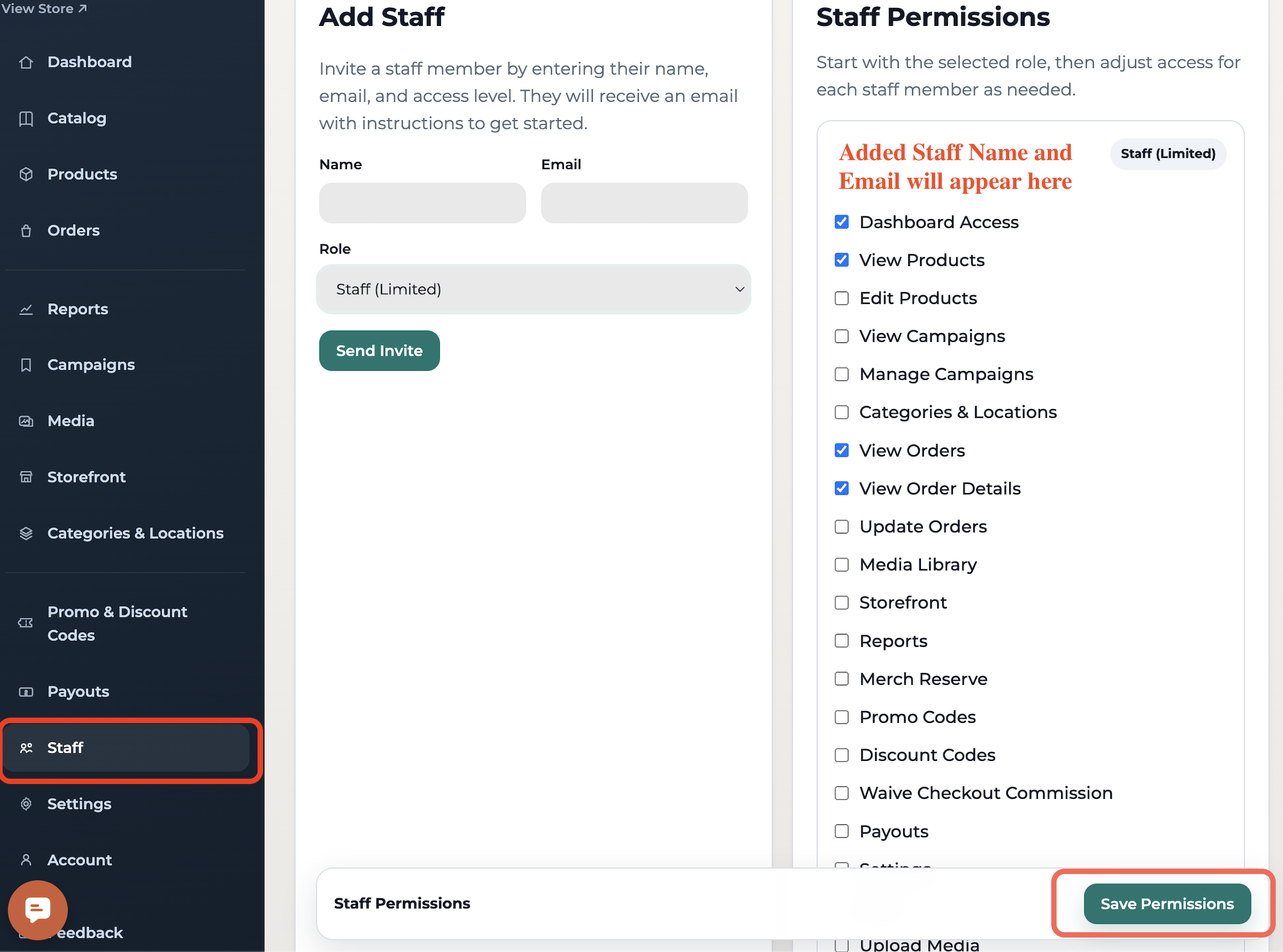
On the left-hand menu of your Dashboard, select the option labeled " Staff."Fill Out Staff Details
A form will appear where you can:Enter the staff member’s required information, such as name, email, and contact details.
Assign specific capabilities or roles to the new staff member based on their responsibilities.
Save the Details
Once all required fields are completed, click "Save Permissions" to add the staff member to your system.
📩 Questions?
Feel free to reach out to our team. Email us anytime at support@impactmerch.com, and we’ll be happy to help!